Cookiebot CMP: overview and setup
Cookiebot is a consent management platform (CMP), which can help your website comply with the restrictions on cookies that have been brought in over the last few years.

Cookiebot features very quick and easy installation (takes about 5 minutes), a simple interface and a free tier for websites with fewer than 100 pages – good points for personal or small company websites. A quick scan of review websites will highlight a darker side though, with some users reporting billing issues and poor customer support.
In case you decide to go with Cookiebot, here’s a quick walkthrough on the set up:
1. Go to Cookiebot and create a free account.
2. After you have confirmed your email, you’ll land on the Cookiebot dashboard. Head to the Your scripts tab and copy the first script on the page.
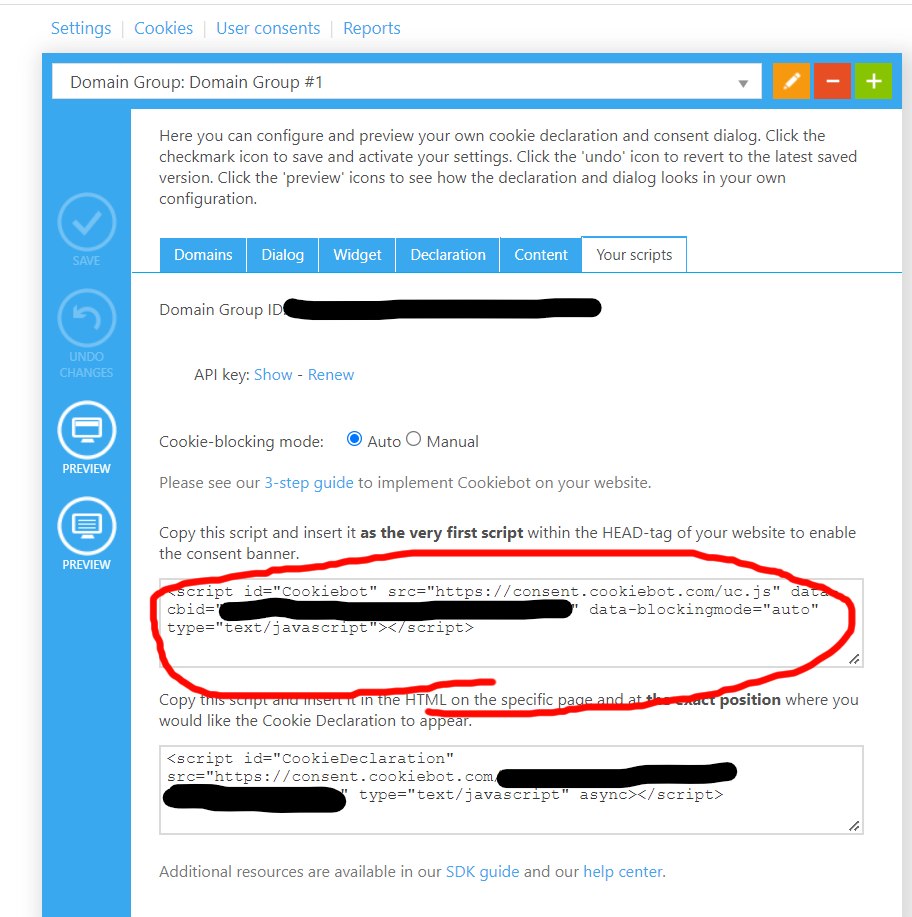
3. Add this script into the head section of your website. Important note: it must be the very first script to be loaded, otherwise other scripts will be able to set cookies before Cookiebot has had chance to block them.
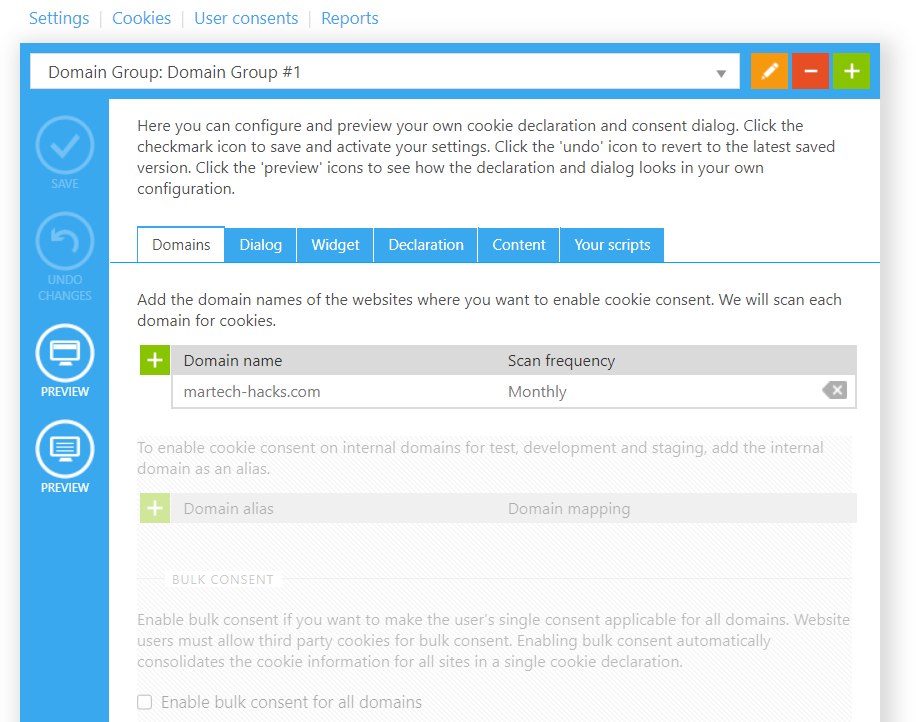
4. Once you’ve added the script to your site, you can go to the Domains tab in Cookiebot. Enter your domain name (e.g. martech-hacks.com).
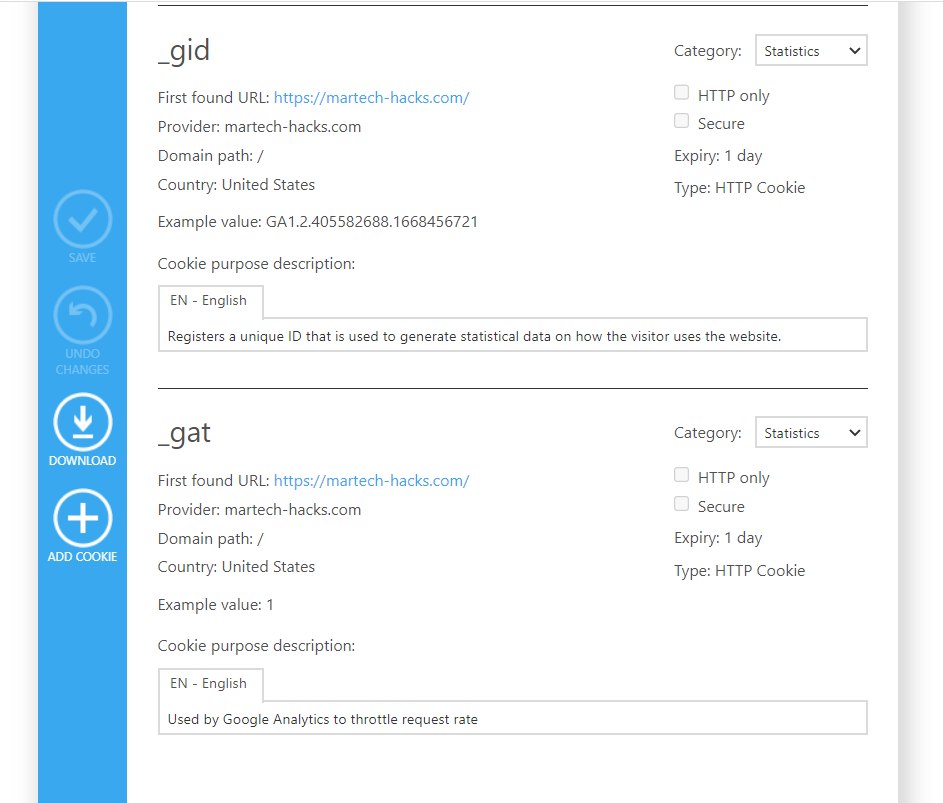
5. Afterwards, navigate to the Cookies section and start a scan. This can take a while – normally at least 15 minutes. When the scan is complete, Cookiebot should pick up the cookies loaded on your site and block them until user consent is given.
6. In the cookies section, you can see the detected cookies. In most cases, they should be pre-classified (necessary, preferences, statistics, marketing) and with pre-written descriptions that your users will see in the consent prompt. You may need to add your own descriptions and classifications if you are loading lesser known scripts/cookies.
That’s the basics done! The functionality on the free version is pretty limited.
You do have some configuration options in the Dialog section, including the option to pre-check the consent input fields (naughty!).
Cookiebot also offers a widget. This is a graphical overlay that sits in the bottom corner of a user’s screen and gives easy access to consent settings. You will probably want to steer clear of this option though, due to the obtrusive visual aspect.
Finally, you can edit the consent texts (the ones which appear on the consent popup) if you have special requirements, want to provide custom copy to maximise optins, or provide translations in other languages.
Some additional hints:
- Make sure you have a page active on your base domain URL. For example, if you enter ‘martech-hacks.com’ as your domain, ensure that you your home page or similar is returned on a HTTP request to this page – otherwise Cookiebot won’t work
- You can also install Cookiebot with GTM in case you don’t have access to your website code base.
How to export consent statistics via the Cookiebot API
Cookie consents, like email subscriptions, push notification optins or advertising ID permissions are valuable metrics!
In the case of cookies, consents will help track/attribute visitors more accurately (tools like Google Analytics are useless without them) and allow your integrated marketing tools to function correctly – so you’ll want to keep a close eye on your consent statistics. This can be done inside your tool, but most (including Cookiebot) will offer a way to export your consent statistics via API to your own database.
In the case of Cookiebot, you can retrieve your stats with a GET call to this endpoint:
Required parameters
| apikey | to authenticate your call, the key is available in the Your scripts section in the Cookiebot UI. See screenshot below. |
| serial | the domain group ID, also available under the Scripts tab |
| domain | the domain you want the data for, as entered in the Domains tab |
| startdate | in YYYYMMDD format |
| enddate | in YYYYMMDD format |
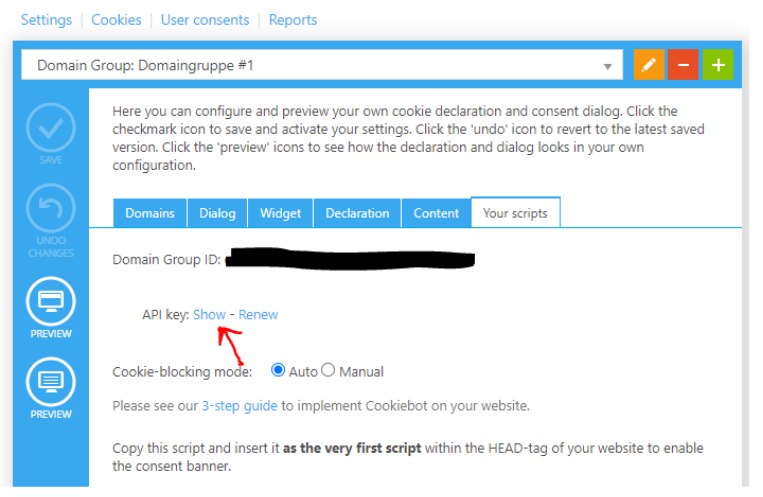
Cookiebot’s documentation is available here.
To test it, power up Postman and make an API call to the endpoint. Your consent data for the required time period should be returned.
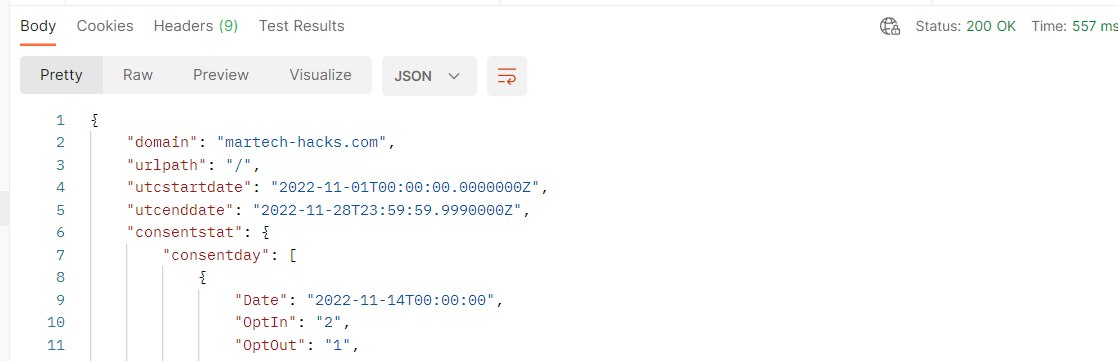
To load your data to a database, you might use a Python script like the one below. Here, we contact the API and save the response into a Pandas dataframe. You can then send data to your database, Google Sheet or other storage medium.
Thanks for reading and all the best with your cookie compliance!
import json
import requests as req
import pandas as pd

apikey = 'Your API key here'
serial = 'Your domain group ID here'
domain = 'Your domain name here'

# edit the start and end dates for the desired period. YYYYMMDD.
startdate = '20221118'
enddate = '20221120'

url = 'https://consent.cookiebot.com/api/v1/' + apikey + '/json/domaingroup/' + serial + '/domain/' + domain + '/consent/stats?startdate=' + startdate + '&enddate=' + enddate

response = req.get(url=url)
responsejson = json.loads(response.text)
consentstat = responsejson['consentstat']['consentday']

optins = []

for x in consentstat:
    optins.append([x['OptInStrict'], x['TypeOptInPref'], x['TypeOptInStat'], x['TypeOptInMark'], x['OptOut']])

df = pd.DataFrame(optins, columns=['OptInStrict', 'TypeOptInPref', 'TypeOptInStat', 'TypeOptInMark', 'OptOut'])

# Here your Pandas dataframe is returned with the optin KPIs.
print(df)