Google Apps Script database: writing dynamic data to Sheet via API
In case you are not familiar with the basics of Google Apps Script, I suggest you check this post. It’ll also run through the concept of a Google Apps Script database and cover some fundamental things which I will refer to below.
A Google App Scripts web app, paired with a Google Sheet, makes a great improvised cloud-based database. You can easily add and retrieve data via API and store everything in a table format – just like in a real database.
In the last post, I covered a simple use case; adding a new row with data only in the first column in the Google Sheet. Interesting, but with limited practical applications. Now I will go through a more complicated scenario which more closely resembles the functionality of an actual database.
_What are we doing?__
Create a Google Apps Script database with more advanced functionality.
- Send an API POST request with JSON object and keys/values.
- Match keys with existing column names, so value data is added to the correct column
- Create new column name if the key doesn’t already have a matching column
Here’s the example data I will refer to in the post:
{
    "timestamp": "2023-01-07 14:45:03",
    "id": "1",
    "name": "martech-hacks database test"
}
And before we start, a quick note on coordinates in a getRange method you’ll read about below (I always forget this…).
- getRange(row, column, numRows, numColumns)
E.g. getRange(1,1,1,5) –> this example would get the first 5 columns from the first row
The parameters mean (all integers):
- row – the row number starting from the top
- column – the column starting from the left
- numRows – the total number of rows to include in the range
- numColumns – the total number of columns to include in the range
_Walkthrough__
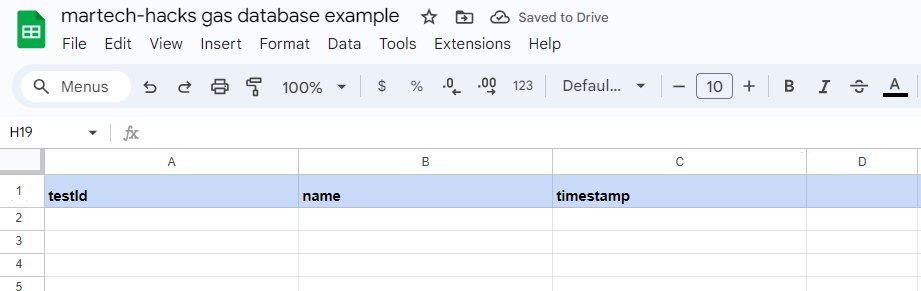
1. Open up a Google Sheet and go to the Google App Script extension. You can add in the column names seen below if you like, although it’s not necessary.
2. In the editor, paste the following web app boilerplate. It contains the basic doPost() function needed to handle POST requests and outputs an error/success message. I’ve also included the beginning of the addRow() function.
/**
 * @OnlyCurrentDoc
 */

function doPost(request) {
  var content;
  /* Trigger add row function and return error message in case of failure */
  try {
    content = addRow(request)
  } catch (err) {
    content = '<error>' + (err.message || err) + '</error>';
  }
  /* return success/fail status message to endpoint */
  return ContentService.createTextOutput(JSON.stringify(content))
}

function addRow(request) {
  var sheet = SpreadsheetApp.getActiveSpreadsheet().getActiveSheet();
  var postContents = JSON.parse(request.postData.contents);

  // define row number to add data to (the next empty row in the sheet)
  var lastRow = sheet.getLastRow();
  var rowNumber = lastRow + 1;
.......

}
3. Next, add the following code at the bottom of the addRow() function. This will handle data with keys for which a column name already exists in the sheet.
 // define last column in the data sheet...
  var lastColumn = sheet.getLastColumn();

  //...and get the column header names
  var headers = sheet.getRange(1, 1, 1, lastColumn).getValues()

  // first, we handle the data for column names aleady in the sheet. Loop through the JSON object sent with the POST request. In case the JSON object has a key which matches a header, push the associated value into the rowData array. Otherwise push an empty value.
  var dataForExistingColumns = []
  for (i = 0; i < headers[0].length; i++) {
    if (postContents.hasOwnProperty(headers[0][i])) {
      dataForExistingColumns.push(postContents[headers[0][i]])
    } else {
      dataForExistingColumns.push('')
    }
  }

  // nest the rowData array into another array. This is necessary as we need a 2-dimensional array to set values over multiple rows and columns
  var dataForExistingColumnsArray = []
  dataForExistingColumnsArray.push(dataForExistingColumns)

  // add the data for existing column names into the sheet
  sheet.getRange(rowNumber, 1, 1, dataForExistingColumnsArray[0].length).setValues(dataForExistingColumnsArray)
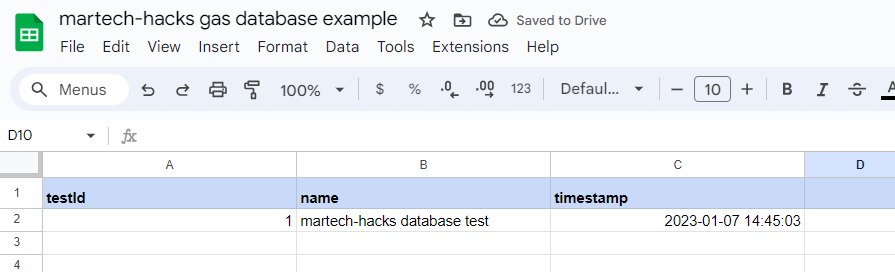
4. Save and deploy your script as a web app. You can now open up Postman or your favourite API testing tool. Copy the API url provided by the Google Web App interface and then send a POST request with the body as the example JSON object above. You should see the data successfully added to the Sheet. Note that the order of the columns is different to the order of the keys in the JSON object.
5. You can try and add an additional field in the JSON and resend, but you’ll see that the additional column data is not added to the Sheet. For that, we need to add a function to the script. Paste the following code:
// now to handle the data for unknown column names. Loop through the JSON object and in case that the key doesn't match the existing column headers, push both the additional key and value into the appropriate arrays
  var additionalColumnNames = []
  var additionalColumnValues = []

  for (var name in postContents) {
    if (headers[0].includes(name) == false) {
      additionalColumnNames.push(name)
      additionalColumnValues.push(postContents[name])
    }
  }

  // nest both the additionalColumn arrays like we did before to create 2-dimensional arrays
  var additionalColumnNamesArray = []
  var additionalColumnValuesArray = []
  additionalColumnNamesArray.push(additionalColumnNames)
  additionalColumnValuesArray.push(additionalColumnValues)

  // finally add the new column names in the header/first row, and add the data in the matching columns and row
  if (additionalColumnNamesArray[0].length > 0) {
    sheet.getRange(1, lastColumn + 1, 1, additionalColumnNamesArray[0].length).setValues(additionalColumnNamesArray)
    sheet.getRange(rowNumber, lastColumn + 1, 1, additionalColumnNamesArray[0].length).setValues(additionalColumnValuesArray)
  }
  return 'success'
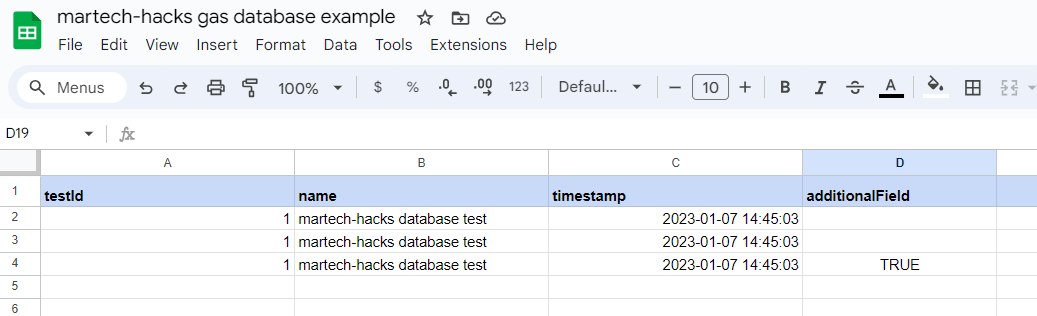
6. Now resend your API POST request to the web app. You should see the additional column added, with the value also present
_Summing up__
With the above code, you can send your API POST request with keys/values in any format and any order – adding essential functionality to your Google Apps Script database. The script will create a new column name for any key which doesn’t match an existing column and match the values with the correct column names. I hope this will be useful for you!