How to make dynamic web pages using data stored in a Google sheet
Many marketers have access to infrastructure to build their own landing pages.
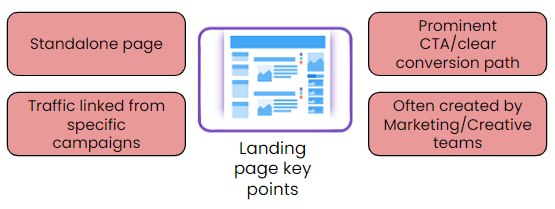
Tools like Unbounce, Webflow, Instapage and Bubble.io offer a drag-and-drop interface making it easy to create attractive, brand matching web pages without coding skills.
However, this ease-of-use comes at the expense of scalability.
imagine a landing page supporting a promotion with different terms & conditions for each city in the campaign. Manually building 10s of pages will not only be time consuming, but will also use up a significant proportion of account resources – especially if you are on a free or low-level plan.
In these cases, you will need a way to store content outside of the landing page and pull it in based on an ID or other identifier. This is common functionality on dynamic websites, often using a URL parameter to differentiate the pages.
To illustrate the point, I’ve set up a single landing page which can display content (image and city description) from 3 wonderful places close to my heart: Bristol, Berlin & Barcelona.
Check this landing page: https://martech-hacks.com/city_page/?city=Bristol
As you can see, the URL path – city_page – hosts the page, and the city parameter (Bristol, in the example) is used to return specific content and populate it to the landing page. If you replace the city parameter with ‘Berlin’ or ‘Barcelona’, that city’s content will be returned.
What are we doing
In a previous post, I took you through how to use Google App scripts & the webapp functionality as a makeshift database. I recommend checking that post before tackling this one, as many of the basic concepts are discussed there.
In this article, I’ll expand upon that use case and show you how to use Google App Scripts as a website CMS to serve dynamic content.
For simplicity’s sake, the code will be as basic as possible – without error handling, for example.
What do you need
- A landing page builder and somewhere to host the pages (you can test on your local machine for this guide)
- Google Sheet to host the city data
- Google App Scripts to read the data and create an API endpoint for the landing page to contact
- For testing – Postman, or other API testing tool
Let’s get started
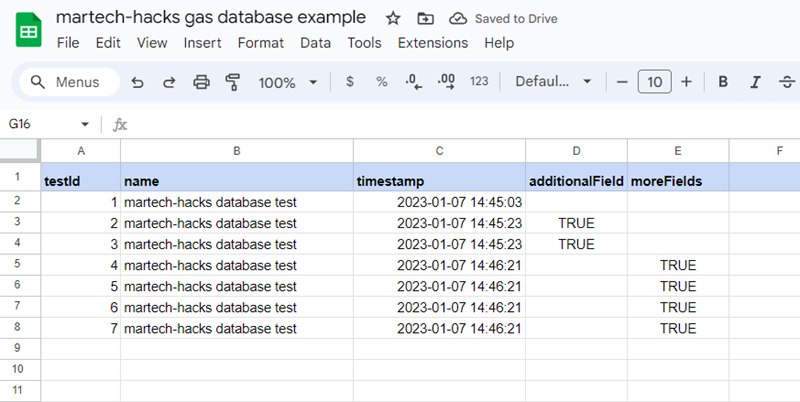
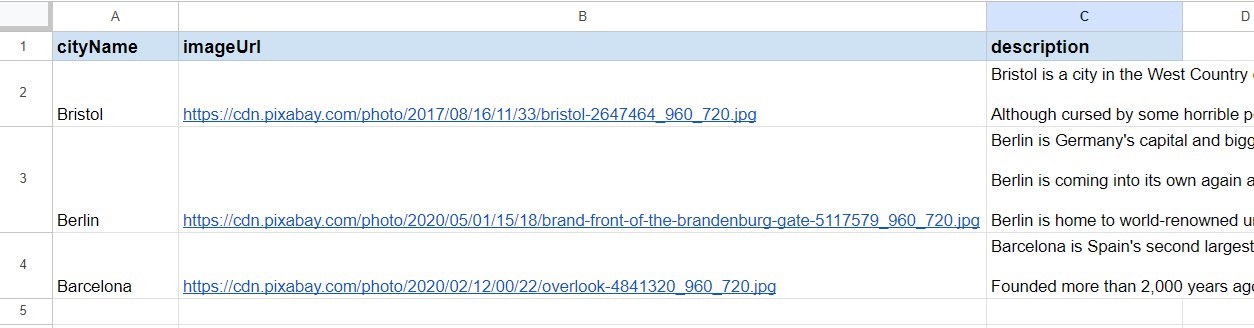
1. First we need to set up the city content. Create a new Google Sheet with 3 columns:
- cityName
- URL
- description
In my example, the image URLs come from Pixabay, a fantastic resource offering royalty-free creatives. The city descriptions I have taken from Wikivoyage.
2. Once you have entered your city details, open up Google App Scripts. We will be adding some scripts and deploying the project as a webapp. We need to add 2 functions:
- doGet() – to handle the GET API requests to the webapp
- retrieveRow() – to search for the specific row containing the city details which match the supplied URL city parameter and put the details in JSON format
3. First, let’s get the doGet() function working.
We will set it up with some test content (the string: “the webapp is working”) in the first case, to make sure the webapp API functionality is working correctly. Paste the following code in your Google App Scripts project and then deploy it as a webapp. I covered deploying Apps Scripts as a webapp in the previous post, so please check it if you need a detailed explanation on how to do this.
function doGet(request) {
  var content;
  /* Try to set the content variable as the test string, or output en error message if not working */
  try {
    content = "the webapp is working!";
    //content = retrieveRow(request);
  } catch (err) {
    content = '<error>' + (err.message || err) + '</error>';
  }
  /* Use Google content service to create a JSON string of the content and return to the function trigger */
  return ContentService.createTextOutput(JSON.stringify(content)).setMimeType(ContentService.MimeType.JSON)
}
4. Once you have deployed your project, you will get a webapp URL looking something like this:
https://script.google.com/macros/s/zafycby4t4-wGyF3xlp_z8yrae8CNG1LDPD836qdbaSL6qYZjyb-z-IIECb_6cabsaA/exec.
Use an API testing tool like Postman to make a simple GET request (no parameters or headers necessary) to your webapp endpoint. If everything’s working correctly, you should see the message: “the webapp is working!”
5. Assuming you’ve received the test message correctly, you can delete the test row content = “the webapp is working!”; and uncomment (remove the //) the row below.
6. Let’s add the retrieveRow() function.
This function will use the city parameter supplied with the GET request to return the city details. For the setup and testing, we will hard-code the city parameter in the script.
First of all, we must find the row in the sheet with the city’s details.
Paste the following code:
function retrieveRow(request) {
/* Create sheet variable with the Google sheet and tab that the script is running in*/
  var sheet = SpreadsheetApp.getActiveSpreadsheet().getActiveSheet();
/* Create variables for the last row and column in the sheet which contain data */
  var lastColumn = sheet.getLastColumn()
  var lastRow = sheet.getLastRow();
/* Create variable for the column name with the city names*/
  var cityColumn = 'A'

/* As mentioned, for testing the city name is hard-coded. When in production, you need to delete the hard-coded city and uncomment the row below*/
  var targetCity = 'Bristol'
  //var targetCity = request.parameter.city

  // Only attempt to find city data if the city parameter is specified in the URL. Otherwise, return cityNotFound error.
  if (targetCity != undefined) {
    var rowNumber;

var cityNames = sheet.getRange(cityColumn + "1:" + cityColumn + lastRow).getValues();
    // Loop through the rows in the city column and return the index number when the target city matches
    for (var i = 0; i < cityNames.length; i++) {
      if (cityNames[i] == targetCity) {
	/* As the loop begins at 0 index, you need to add 1 to get the row number */
        rowNumber = i + 1;
      }
    }
    console.log(rowNumber)
}
/* new code here*/
}
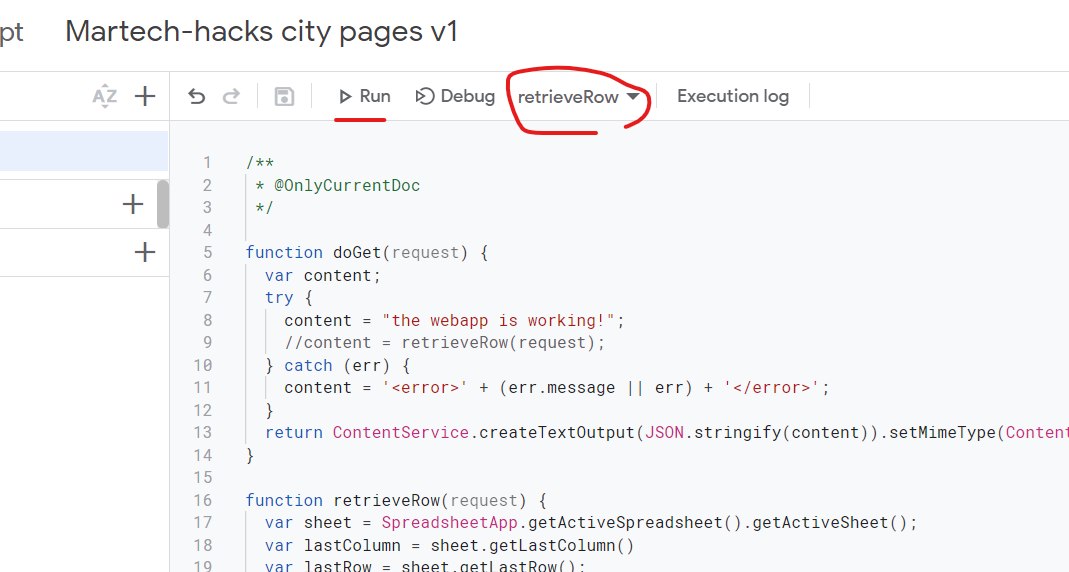
7. Save your script. To test it, select the retrieveRow() function at the top of the screen and click run. You should see ‘2’ returned.
8. Now we need to get the details from the city row. Paste the following code at the bottom of your project:
// Get the city details from the corresponding row
    var selectedCityData = sheet.getRange(rowNumber, 1, 1, lastColumn).getValues();
    var selectedCityDataArray = selectedCityData[0]

    console.log(selectedCityDataArray)
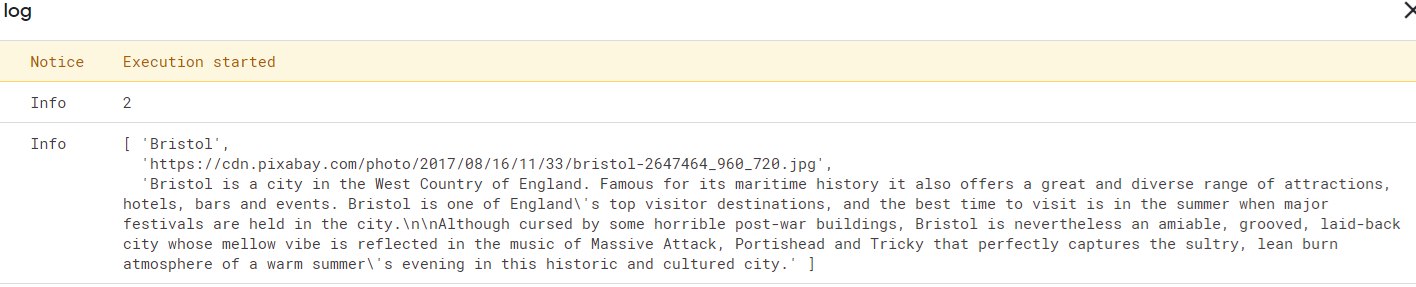
Run the script again and you should see the city details of Bristol in the console.
9. The column names are required to construct our final JSON object and make the data readable for the landing page. Add this code to get the header names and save to an array:
// Get header names from sheet
    var headerNames = sheet.getRange(1, 1, 1, lastColumn).getValues();
    var headerNamesArray = headerNames[0]

    console.log(headerNamesArray)
10. Now we can make the final JSON object. Put the following code in the project, underneath the last 2 snippets. It will loop through the column names, save them as keys and add the corresponding city detail as an value.
// Use header names and each column index in the corresponding row to create a JSON object with key-value pairs
    var selectedCityDetailsObject = new Object();
    headerNamesArray.forEach((value, index) => {
      selectedCityDetailsObject[value] = selectedCityDataArray[index]
      return selectedCityDetailsObject;
    });
    console.log(selectedCityDetailsObject)
    //return selectedCityDetailsObject
If you run a test of your script, you should see all Bristol’s city data nicely laid out in JSON format. Once you’ve tested, make sure to uncomment the last row – otherwise the function won’t output any data.
11. Finally, add this code snippet at the end of your script, just before the final closing curly bracket }. It will output an error message, in case an unknown city is included in the URL.
else {
    return 'cityNotFound'
  }
That’s it for the Google Script. Now onto the landing page!
Our landing page is super simple. We have 6 HTML elements, CSS for styling them and some Javascript to pull the data from the webapp endpoint & populate it to the page.
12. We’ll start by adding the HTML.
<!DOCTYPE html>
<html lang="en">

<head>
    <meta charset="UTF-8">
    <meta name="viewport" content="width=device-width, initial-scale=1.0">
    <meta http-equiv="X-UA-Compatible" content="ie=edge">
    <title>Martech-hacks city pages</title>
    <style>

    </style>
</head>
<body>
    <main>

        <div id="loader"></div>
        <div id="cityContent">
            <div id="headerImage">
                <div id="headerText"></div>
            </div>
            <div id="description"></div>
        </div>
    </main>
    <script>

    </script>
</body>
</html>
As you can see, there are DIVs for holding the header image, the header text and the city description. These are wrapped in the cityContent DIV (the reason will be explained shortly). The loader DIV shows a loading icon – pretty essential, as the script can take a second or so to return the data.
13. Next, add the script. This will get the city name from the URL, contact the Google Sheets webapp and then populate the data into the landing page.
const cityName = getUrlParameter('city');

        // This function searches the URL for the 'city' parameter (passed with the triggering variable above) and returns the value of that parameter i.e. Bristol
        function getUrlParameter(targetURLParameter) {
            var pageURL = decodeURIComponent(window.location.search.substring(1))
            var URLVariables = pageURL.split('&')
            var parameterName;

            for (i = 0; i < URLVariables.length; i++) {
                parameterName = URLVariables[i].split('=');
                if (parameterName[0] === targetURLParameter) {
                    return parameterName[1] === undefined ? "Unknown" : parameterName[1];
                }
            }
        };

        /* This function puts the data returned with the API at the bottom into the appropriate fields that we defined in the HTML code.*/
        function displayFetchedData(data) {
            /* Once the data is returned, we can hide the loader icon ...*/
            document.getElementById('loader').style.display = 'none'
            /* ... and show everything that was wrapped in the cityContent DIV -> the header image and texts*/
            document.getElementById('cityContent').style.display = 'block'
            document.getElementById('headerText').innerHTML = 'Welcome to ' + data.cityName + '!'
            document.getElementById('description').innerHTML = data.description
            document.getElementById('headerImage').style.backgroundImage = "url('" + data.imageUrl + "')"
        }

        /* This API call contacts the Google Sheets webapp API endpoint with the city parameter, and then triggers the displayFetchedData() function with the data returned from the sheet*/
        fetch("https://script.google.com/macros/s/AKfycbwWDoMOtDoHgOCKP9jGqnJZj7iHLCPMhLT82Jzfgk2XODLy_usPlRGi6q3PP7QjfSlA9A/exec" + "?city=" + cityName)
            .then((response) => {
                return response.json();
            })
            .then((data) => {
                displayFetchedData(data)
            })
14. Finally, let’s add some CSS to make the whole thing look nicer.
* {
            font-family: 'Montserrat', Arial, Helvetica, sans-serif;
        }

        body {
            padding: 30px 0 30px 0;
        }

        main {
            margin: auto;
            background-color: #ffffff;
            border-radius: 10px;
            min-height: 200px
        }

        #headerImage {
            background-image: url('https://cdn.pixabay.com/photo/2017/08/16/11/33/bristol-2647464_960_720.jpg');
            background-size: cover;
            width: 100%;
            min-height: 500px;
            position: relative;
        }

        #headerText {
            font-size: 2.5em;
            background: #edededab;
            position: absolute;
            top: 300px;
            left: 20px;
            padding: 5px;
        }

        #description {
            padding: 20px;
        }

        #cityContent {
            display: none;
        }

        #loader {
            border: 10px solid #f3f3f3;
            border-top: 10px solid rgba(118, 37, 247, 1);
            border-radius: 50%;
            width: 30px;
            height: 30px;
            animation: spin 2s linear infinite;
            margin: auto;
        }

        @keyframes spin {
            0% {
                transform: rotate(0deg);
            }

            100% {
                transform: rotate(360deg);
            }
        }
15. If you open up your landing page with the city parameter appended i.e. ?city=Bristol, you should see the city page returned with all the data from the Google Sheet! Watch out – Bristol is case-sensitive.

Summing up
In this post, we’ve covered how to use Google Sheets as a basic CMS to create dynamic landing pages. Any number of cities can be added to the sheet and of course with some additional code, more data points (population, sights, gastronomy etc.) can be displayed in the pages too.
Thanks for reading! As always, you’ll find the complete script in the Martech-Hacks Github repo.